How to Create a Roblox Game — Step-by-Step (2025)

By RobloxTools6 min read

Want to make your own Roblox game? This step-by-step guide covers everything you need to know, from installing Roblox Studio to publishing and updating your game for thousands of players.

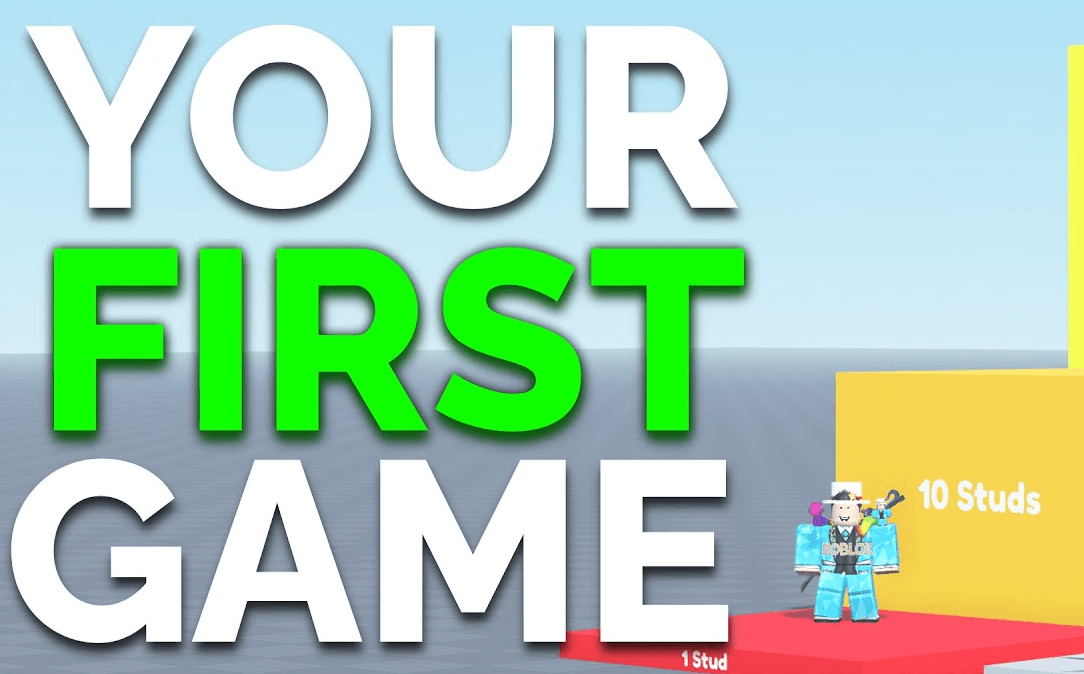
How to create a Roblox game screenshot
  1. Step 1Install Roblox Studio
    Roblox Studio is the official development environment for Roblox. Download Roblox Studio here. Install it on your computer and log in with your Roblox account. Make sure your PC meets the minimum requirements for smooth performance. If you have Roblox Player installed, Roblox Studio may already be available from your Start menu.
  2. Step 2Explore the Interface
    Take time to learn the layout of Roblox Studio. Key panels include the Explorer (for managing objects), Properties (for editing object settings), and the Toolbox (for free models and assets). Try dragging parts into the workspace and changing their properties. Understanding these will make building much easier.
  3. Step 3Choose a Template
    Templates are a great way to start. Roblox Studio offers templates like Obby, Racing, and City. Pick one that matches your game idea, or start with a Baseplate for full creative control. You can always add or remove elements later.
  4. Step 4Design Your Game World
    Use parts, meshes, and models to build your environment. Add terrain, lighting, and effects to make your world unique. Import free assets from the Toolbox or create your own for a personal touch. Organize your workspace using folders and groups for easier management.
  5. Step 5Add Gameplay Mechanics
    Bring your game to life with scripts! Roblox uses Lua for scripting. Start simple: make doors open, add leaderboards, or create checkpoints. Use the Script and LocalScript objects. As you learn, add more complex features like custom GUIs, power-ups, or multiplayer systems. The Roblox Developer Hub has great scripting tutorials.

    Example: simple leaderstats (adds a Score counter when players join)

    local Players = game:GetService("Players")
    
    Players.PlayerAdded:Connect(function(player)
      local leaderstats = Instance.new("Folder")
      leaderstats.Name = "leaderstats"
      leaderstats.Parent = player
    
      local score = Instance.new("IntValue")
      score.Name = "Score"
      score.Value = 0
      score.Parent = leaderstats
    end)
  6. Step 6Test and Debug
    Test your game often using the Play button. Check for bugs, glitches, or confusing gameplay. Ask friends to playtest and give feedback. Use the Output window to catch script errors and fix them early. Try testing on different devices if possible.
  7. Step 7Publish and Share
    When your game is ready, click File > Publish to Roblox. Fill in the title, description, and icons. Set permissions (public, friends, or private) and choose relevant genres and devices. Share your game link on social media, Roblox groups, and with friends to get your first players.
  8. Step 8Update and Evolve
    Keep your game fresh! Listen to player feedback, fix bugs, and add new content regularly. Updating your game keeps players engaged and can help your game grow in popularity. Consider adding badges, leaderboards, or seasonal events to keep things interesting.

Pro Tips for New Roblox Developers

  • Join the Roblox Developer Forum to ask questions and learn from others.
  • Watch YouTube tutorials for visual step-by-step help.
  • Read the official Roblox Developer Hub for documentation and best practices.
  • Start small—focus on finishing a simple game before making something huge.
  • Have fun and experiment! Creativity is key to making a great Roblox game.

© 2025 RobloxTools.net — Your resource for Roblox guides and tutorials.